See the proposal on your own website.
Install Placement Studio once, open the page shared by Vertex Media, and preview the proposed layout with one click.
From installation to preview in about two minutes
Use Chrome on a desktop or laptop and keep the website URL sent by your Vertex Media contact nearby.
Add Placement Studio to Chrome
Open the official Store listing, select Add to Chrome, then confirm with Add extension. You only do this once.
Open the Chrome Web Store
Go to the page shared by Vertex Media
Open the exact website address from your proposal email. The extension checks only the domain and page path after you ask it to preview.
TipIf the icon is hidden, select Chrome's extensions puzzle icon and pin Placement Studio.
The page remains unchanged until you request the preview.
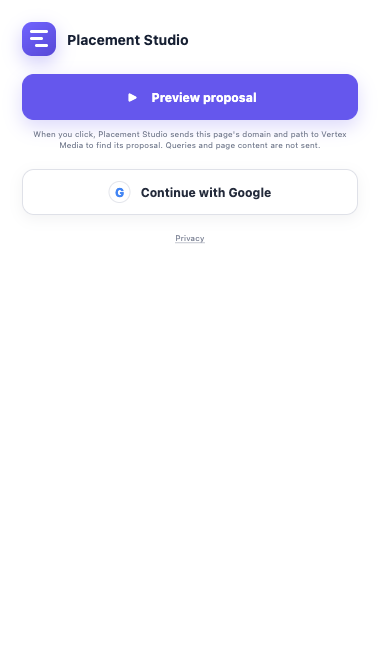
Open Placement Studio and select Preview proposal
Select the Placement Studio icon in Chrome, then select the purple Preview proposal button. Client previews do not require Google sign-in.
PrivacyNothing is sent for proposal discovery until you select the preview button.
Explore the proposed placements on the real page
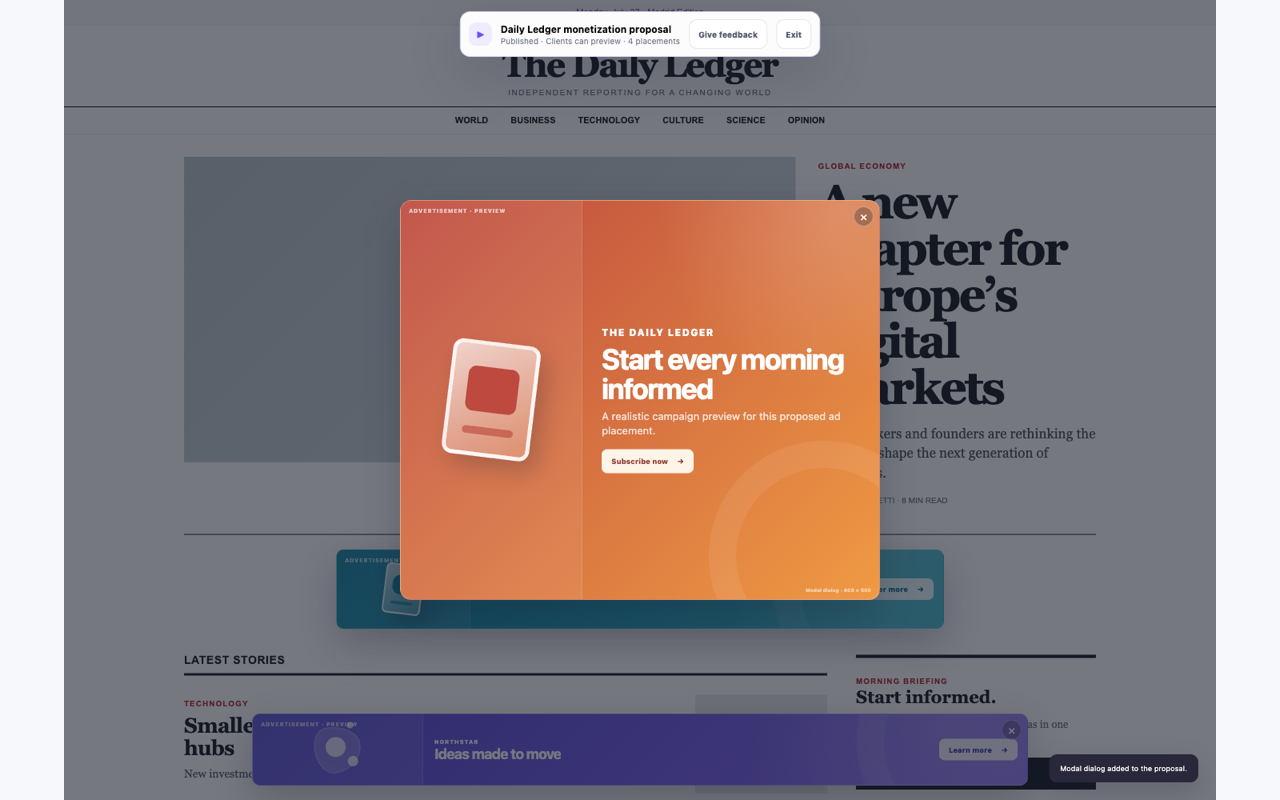
Scroll normally to see banners, in-content units, sticky formats, or dialogs included in the proposal. These are simulations—not live advertisements.
Use Give feedback to privately like placements or leave a comment. Select Exit to remove the complete preview.
One installation, one preview click
After Chrome installs Placement Studio, future proposals use the same extension. Open the shared website and select Preview proposal.